How to Reduce Input Lag for Competitive Online Play
Reduce input lag for competitive gaming with expert tips on network optimization, display settings, peripheral tuning, and system configuration.
Anúncios
Input lag combines every delay between your physical action and its effect on screen. Reducing this chain of latency from network transmission to display rendering creates a more responsive gaming experience where actions feel immediate and connected to on-screen results.
What Causes Input Lag in Online Gaming?
Input lag accumulates from multiple sources: peripheral response time, USB polling rate, operating system processing, game engine rendering, network transmission, server processing, and display response time. Each link adds milliseconds that combine into perceptible delay.
Anúncios
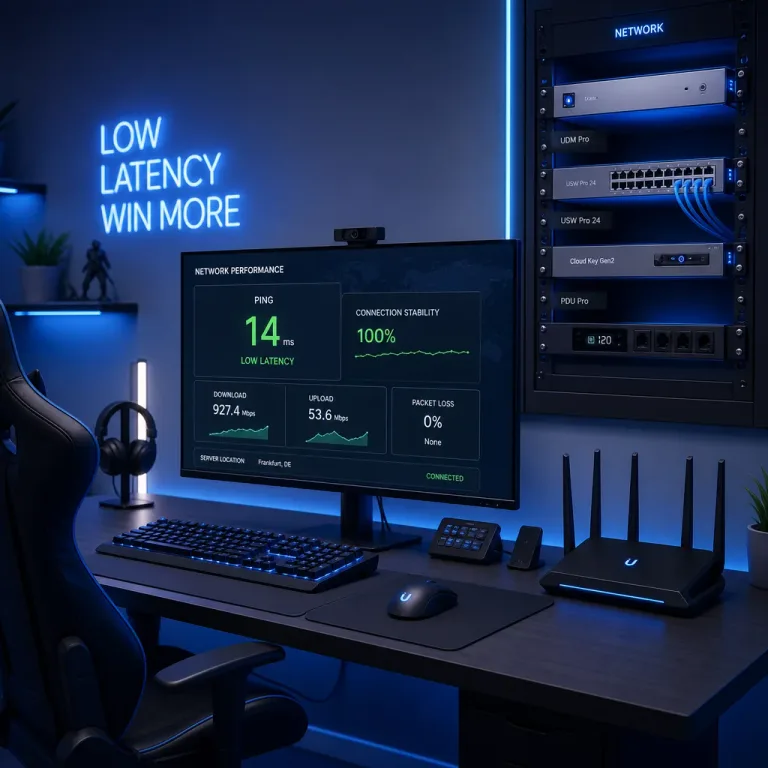
Network latency often dominates total input lag in online games. The round-trip time between your PC and the game server adds delay that local optimizations cannot eliminate, making server selection and connection quality the most impactful factors for online play.
How Does Wired Internet Reduce Latency?
Ethernet connections provide consistent latency without the variable packet timing that WiFi introduces. While average WiFi speeds may match wired connections, the latency spikes caused by wireless interference, signal negotiation, and channel congestion create inconsistent ping times that affect competitive play.
Anúncios
Cat6 or Cat6a ethernet cables support full gigabit speeds with sufficient shielding against interference. Connecting directly to your router rather than through a switch or powerline adapter minimizes additional network hops that each add small increments of latency.
What Display Settings Affect Input Lag?
Enable game mode on your monitor or television to bypass image processing that adds delay. Noise reduction, motion smoothing, and dynamic contrast features process each frame before display, adding 20 to 100 milliseconds of lag that game mode disables.
- Disable motion smoothing and frame interpolation features
- Turn off dynamic contrast and noise reduction processing
- Enable game mode or low-latency mode in display settings
- Set refresh rate to the highest supported value
- Disable V-Sync in favor of G-Sync or FreeSync if available
How Does Frame Rate Impact Perceived Responsiveness?
Higher frame rates reduce the time between your input and its visual representation on screen. At 60 frames per second, each frame persists for 16.7 milliseconds. At 240 frames per second, frame persistence drops to 4.2 milliseconds, creating measurably faster visual feedback.
Matching your frame rate to your monitor's refresh rate maximizes this benefit. Producing 240 frames per second on a 60Hz monitor wastes the responsiveness improvement because the display can only show one quarter of the rendered frames.
Should You Use V-Sync for Competitive Gaming?
Traditional V-Sync adds one to three frames of input lag by holding rendered frames until the display is ready. This delay is significant in competitive scenarios where milliseconds determine firefight outcomes. Most competitive players disable V-Sync entirely.
NVIDIA Reflex technology offers a better solution by reducing the render queue to minimize latency without introducing tearing. Games supporting Reflex achieve lower input lag than either V-Sync on or off, making it the optimal choice when available.
How Do Polling Rates Affect Peripheral Responsiveness?
Mouse and keyboard polling rates determine how frequently they report inputs to your PC. Standard 1000Hz polling sends data every millisecond, while newer peripherals offering 4000Hz or 8000Hz report four to eight times more frequently, reducing the maximum input reporting delay.
The practical difference between 1000Hz and 8000Hz polling is small for most players but detectable at the highest competitive levels. Ensuring your peripherals poll at least at 1000Hz eliminates the 8 millisecond default USB polling interval that some devices use.
What Operating System Tweaks Reduce Latency?
Disabling unnecessary background processes frees CPU resources for game processing. Antivirus real-time scanning, cloud synchronization services, and software update checkers can cause micro-stutters when they compete with game threads for processor time.
- Set game process priority to high in task manager or game settings
- Disable Windows Game Bar and background recording features
- Update GPU drivers to the latest stable release for optimal performance
- Close bandwidth-consuming applications before competitive matches
- Disable full-screen optimizations for your game executable
- Set power plan to high performance to prevent CPU frequency scaling delays
How Do In-Game Settings Affect Input Lag?
Lowering graphical settings reduces the time your GPU needs to render each frame. Faster rendering means newer frames reach your display sooner, reducing the age of the visual information you react to. Competitive players often sacrifice visual quality for this responsiveness advantage.
Render resolution has the largest impact on frame time. Reducing from native 1440p to a lower internal resolution with upscaling applied can double or triple your frame rate, dramatically reducing the rendering component of total input lag.
What Router Settings Help Competitive Gaming?
Quality of Service settings prioritize game traffic over other network activity. When family members stream video or download files simultaneously, QoS ensures game packets receive priority routing, preventing latency spikes caused by bandwidth competition on your home network.
Port forwarding for your specific game titles ensures direct connections to game servers without NAT translation delays. While modern routers handle this automatically through UPnP, manually configuring ports provides more reliable and consistent connections for competitive play.
Does Your Monitor Cable Type Matter?
DisplayPort generally delivers slightly lower latency than HDMI for gaming at equivalent specifications. The difference is minimal on modern connections, but competitive players who optimize every variable prefer DisplayPort for its direct digital signal path without protocol conversion overhead.
Using cables that match your monitor's maximum specifications ensures full capability utilization. A DisplayPort 1.2 cable on a monitor supporting DisplayPort 1.4 features limits both bandwidth and potential refresh rate, potentially capping performance below what your hardware supports.
How to Measure Your Total Input Lag
NVIDIA FrameView and CapFrameX measure render latency and frame time consistency. These tools quantify the delay between input and rendered output, helping you identify which optimizations provide measurable improvement versus those that make theoretical but imperceptible differences.
High-speed camera testing at 1000 frames per second captures the total system latency from button press to screen update. While impractical for most users, published results from hardware reviewers provide reliable data for comparing monitors, peripherals, and system configurations.